Free tool · Work orders

Free work order generator

Give every job clear instructions. Add the client, location, schedule and tasks, then share a work order your team can use.

  • Free, no account
  • Stays in your browser

Create your work order

Start with the job details. Required fields are marked with an asterisk.
1
Business and clientIdentify the business doing the work and the person requesting it.
Give this work order a clear title.
Name of the business responsible for the work.
Person or business requesting the work.
Address, email or phone number for questions about this job.
Contact person, email and phone number for this job.
2
Job and scheduleGive the job a reference, location and optional schedule.
Use a unique reference to match this job with its quote, notes and invoice.
Dates are shown in the page language on the document.
Person or team expected to carry out the work. This does not send a notification.
Optional. Add appointment times in the instructions.
Optional. It cannot be earlier than the planned start date.
Site address, room, equipment reference or remote-work location.
3
Work instructionsDescribe the result and break the work into clear tasks.
Describe the job, expected result and any limits to the work.
One task per line, up to 50 tasks of 200 characters each. Boxes print empty for use on site.
List parts, quantities, tools or equipment needed, and who provides them.
Add access arrangements, appointment times, dependencies and relevant site instructions.
4
Costs and completionLink the agreed price and record what happened after the work.
Optional estimate or agreed quote reference. If entering amounts, state the currency and tax treatment. This tool does not calculate charges.
Record the work carried out, outstanding tasks and follow-up needs when the job is finished.

Work order preview

What is a work order?

A work order is a job sheet that records what needs to be done, where and by whom. Use it to organise a service visit, repair, installation or other job. A useful work order brings the request, instructions, schedule and completion notes together. This generator creates a document; it does not dispatch staff, track live progress or issue an invoice.

Work orders compared with related business documents
DocumentMain purposeWhat to include
Work orderOrganise a specific job.Client, location, assignment, tasks, schedule and completion notes.
QuotePresent a price for defined work.Services, quantities, prices, taxes and validity period.
Service agreementRecord the terms of the working relationship.Parties, scope, fees, payment and other agreed terms.
InvoiceRequest payment.Invoice details, charges, tax information and payment instructions.
Accounting

Keep the client and the billing organised

Send a quote your client accepts online. Turn it into an invoice without typing it again, and let them pay it online.

Quotes clients accept onlineYour client accepts or rejects the quote on its own page. You see which.
Online paymentConnect Stripe, and clients pay the invoice by card.
Paid, due, overdueOne list shows who has paid and who needs a nudge.

How to create a work order

  1. 1Identify the jobAdd your business and client, a unique work order number and the work location or asset. Include the contact details the team will need.
  2. 2Set the planName the assignee, choose the priority and add dates if known. Describe the work, list tasks and record materials, access details and other instructions.
  3. 3Review and shareCheck the preview, then print or save a PDF for the team. Add completion notes after the job and keep a copy with the related quote and invoice.
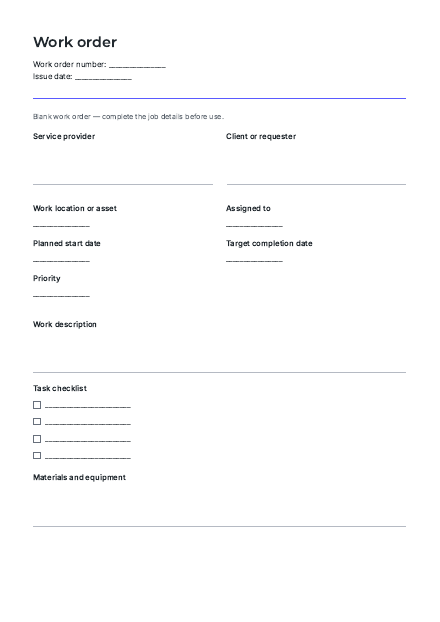
Start with a blank work order template

Download a printable job sheet with space for client details, instructions, tasks and completion notes. Fill it in before sharing it with your team.

Download blank PDF (77 kB)

What makes a useful work order?

  1. Use one reference throughoutChoose a unique work order number. Put it on job notes and use it when referring to the related quote or invoice, so records are easy to match.
  2. Describe an observable resultState what should be repaired, installed, delivered or checked. Include boundaries and dependencies so the team knows when the requested work is complete.
  3. Include practical detailsRecord the exact site or asset, access contact, appointment time and materials needed. Only include personal or access information that the recipient needs.
  4. Separate priority from a bookingA priority label expresses urgency; it does not reserve time or notify an assignee. Confirm availability and appointments separately before sharing the work order.
  5. Close the loop after the jobRecord what was done, what remains and any follow-up. Printed checkboxes and signature areas can be filled in on site; they do not update a tracking system.

Free tools for your business

ROI calculatorCompare the total return with your costs and calculate return on investment.Open the toolPurchase order generatorPrepare a clear purchase order with items, prices and delivery details.Open the toolCash flow forecast calculatorPlan monthly money in and out, and spot projected cash shortfalls.Open the toolReceipt generatorRecord a payment received and create a clear, printable receipt.Open the toolClient satisfaction survey builderBuild an editable questionnaire to learn what clients value and what you can improve.Open the toolHiring plan generatorPlan roles, headcount, hiring owners and target dates in one editable document.Open the toolHoliday trackerTrack holiday allowances, days taken and booked, and each person’s remaining balance.Open the toolLeave plannerPlan time off, count working days and check overlapping entries for each person.Open the toolEmployee offboarding checklistCoordinate handover, equipment return, access changes and follow-up.Open the toolEmployee onboarding checklistPlan a new starter’s first days with clear tasks, owners and dates.Open the toolInterview scorecardRecord evidence and ratings against the same job-related criteria.Open the toolInterview questions generatorPrepare job-related questions, follow-ups and evidence to look for.Open the toolJob description generatorDescribe the role, responsibilities and skills in a clear hiring document.Open the toolBusiness day & deadline calculatorFind a deadline or count working days with your own calendar.Open the toolMeeting notes templateCapture discussions, decisions and action items in a clear, shareable record.Open the toolTask plannerOrganise tasks, set priorities and track progress in one clear plan.Open the toolProject brief generatorDefine goals, scope and deliverables before the work begins.Open the toolTimesheet calculatorAdd daily start, finish and break times to total your working week.Open the toolProject timeline generatorTurn tasks and durations into a clear project schedule.Open the toolBillable hours calculatorTotal your billable time, review utilisation and estimate work value.Open the toolBusiness health checkReview your business routines and choose your next improvements.Open the toolBusiness expense trackerRecord expenses, see category and payment totals, and export a dated CSV for your own records.Open the toolRecurring revenue calculatorTurn subscriptions and retainers into monthly and annual recurring revenue, with a clear breakdown.Open the toolClient profitability calculatorSee what a client contributes after delivery, support, expenses and overhead over the same period.Open the toolProject profitability calculatorCompare project revenue with labour, expenses and overhead to see your profit and margin.Open the toolService contract generatorTurn your agreed services, fees and terms into a document for review.Open the toolClient intake form builderCreate custom intake questions and download a standalone, printable form.Open the toolPayment plan calculatorSplit a balance into dated instalments with an optional upfront payment.Open the toolLate payment interest calculatorEstimate overdue interest from your balance, rate and dates.Open the toolBusiness proposal builderPresent your approach, scope and price in a clear PDF.Open the toolFreelance day rate calculatorSet a day rate that covers your goals and time off.Open the toolService pricing calculatorTurn time, expenses and overheads into a service price.Open the toolInvoice generatorCreate a clear PDF invoice with tax lines, payment details and the balance due.Open the toolBreak-even calculatorFind the sales volume needed to cover your costs and check a forecast.Open the toolPayment reminder generatorWrite a clear invoice follow-up, from a friendly nudge to a firm reminder.Open the toolPricing & margin calculatorFind the price to charge, or check the margin on a price you already have.Open the toolQuote generatorYour business, your client, your items: a clean PDF quote in two minutes.Open the toolProject budget estimatorPlan hours, expenses and a contingency allowance before you commit.Open the tool

Work order generator FAQ

Is the work order generator free?

Yes. Create, preview and export a work order without an account or payment. The optional Skileo footer credit can be removed.

What jobs can I use it for?

Use the editable fields for service visits, maintenance, repairs, installations and other jobs. Identify the location or asset and describe the work clearly. The tool does not provide technical procedures or replace site-specific instructions.

Can I add labour and material costs?

You can write an estimate or refer to an agreed quote in the cost field, and list materials with quantities. State the currency and tax treatment when entering amounts. The tool does not calculate costs or generate an invoice.

Does it schedule or assign work automatically?

No. The assignee, priority and dates appear on the document only. Nothing is sent to a team member, added to a calendar or tracked online. Share the exported file and confirm the schedule separately.

Can the team complete the checklist and sign it?

The PDF has empty task boxes and blank completion and acknowledgement areas for use outside the tool. You can add completion notes in the builder and export a new copy. It does not collect signatures or verify that work is complete.

Can I download and edit the work order?

Yes. Use Download PDF to open the browser’s print dialog and choose Save as PDF, or download plain text to edit elsewhere. A blank PDF template is also available in every page language.

Where is the work order saved?

Only in this browser’s local storage on this device. It is not sent to Skileo or synced to an account. Switching page language preserves your custom text without translating it. Use Start over on a shared device, and export before clearing browser data.

Have a question? Talk to us.

From a clear job to organised billing

Bring your client records, quotes and invoices together in Skileo.

No credit card needed No time limit on the Free plan.

Work order preview